Workflows
Workflows are multi-step automations that run behind your app: search the web, summarize with AI, save the result, send a push notification, all as one sequence with no external services to wire together.
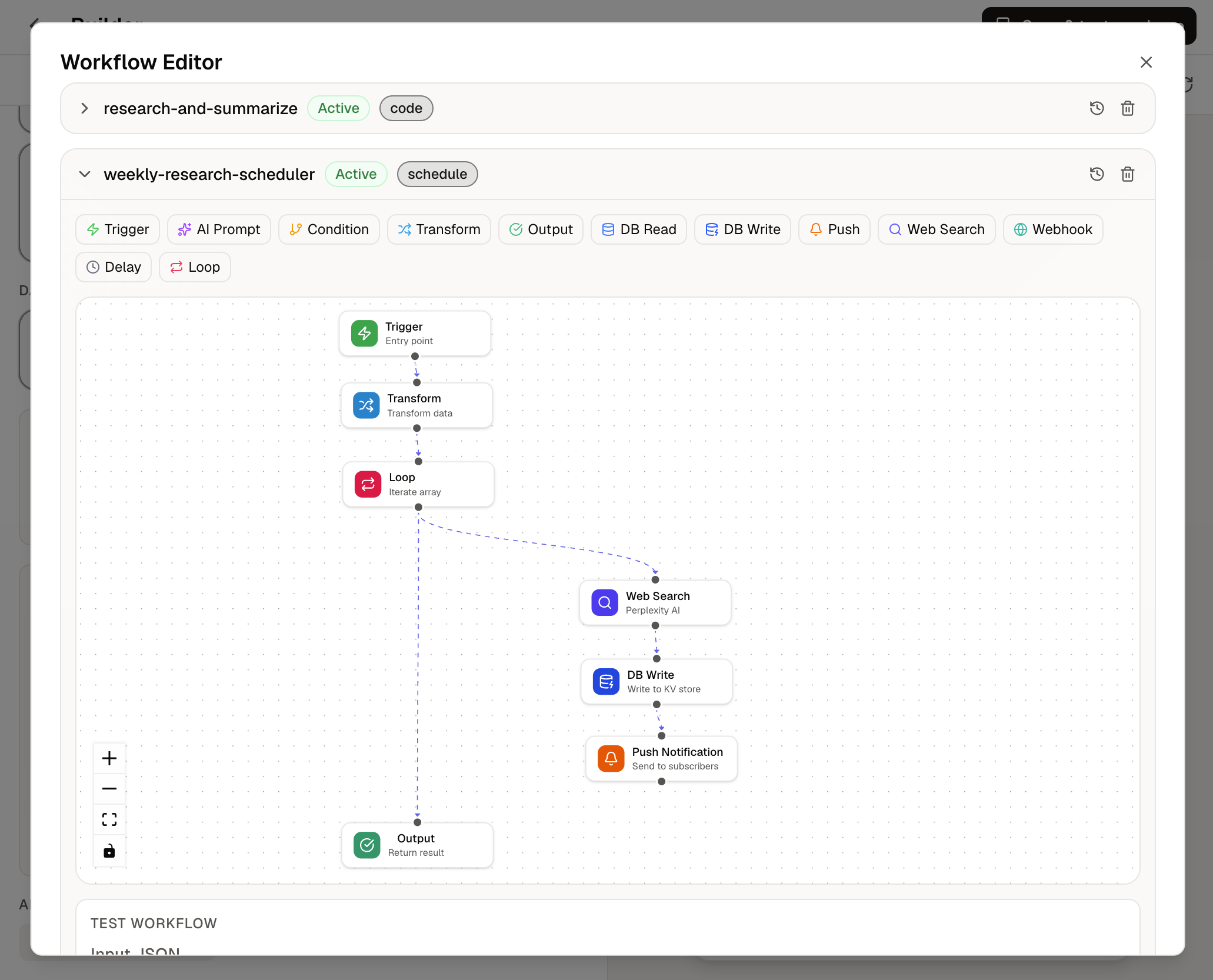
When you describe an app that needs automation ("research a topic, summarize it, and notify me"), the AI builds the workflow along with the app. You can also open the Workflow Editor on any app and build one visually. Each step is a block on a canvas that you can click, configure, and connect.
Triggers
A workflow starts in one of four ways:
- From your app: app code triggers the workflow, typically when a user taps a button.
- On a schedule: run automatically at set times (every morning, every hour).
- Webhook: an outside service calls a unique URL to start the workflow.
- Event: starts when your app's data changes, like a new entry being saved.
Blocks
Workflows are built from blocks. Each block can use the output of the blocks before it: a search result feeds an AI summary, the summary gets saved, the save triggers a notification.
- Trigger and Output: where a workflow starts, and what it returns when it finishes
- AI Prompt: process, summarize, or generate text with AI
- Web Search: pull real-time information from the web
- DB Read and DB Write: read or save data in your app's built-in database
- Push: alert people who've installed your app
- Webhook: call any outside service
- Integration: call a connected service like HubSpot, Slack, or Google Sheets
- Condition: branch on whether something is true
- Transform: reshape data between steps
- Loop and Delay: repeat steps, or wait before continuing
Workflows the AI builds for you can also use a few advanced blocks that aren't in the editor palette yet: Generate Image, Parallel, and Sub-workflow.
Runs
Workflows execute in the background, so your app doesn't freeze while one runs. Each execution is recorded as a run with its status, inputs, outputs, and per-step results, so you can see exactly what happened. If an AI service is having issues, Envelope routes around it with built-in fallbacks.
Next steps
- Modules: the capabilities workflows can use
- SDK Reference: trigger and monitor workflows from app code